
Key takeaways
- Local AI keeps your data on your machine. Apps like Ollama, LM Studio, Jan and GPT4All run open-weight AI models on your own computer. Once a model is downloaded, chats and documents can stay on your device.
- “Local” is a setting, not a guarantee. Several of these apps also offer cloud models, web search or tools that do use the internet. Turn those off for health data.
- Your records are yours to download. Under HIPAA and the 21st Century Cures Act, you can get your records electronically, usually free through your patient portal.
- Local models are smaller and make more mistakes. They are useful for organizing and explaining your own records, not for diagnosis. Even Google’s medical model, MedGemma, is labeled a developer model that needs validation.
- Bring the summary, not the chat. The same one-page visit summary works with a local model, and you choose exactly what to share with your physician.
Why consider local AI at all?
The other posts in this series cover consumer AI health tools from OpenAI, Anthropic, Google, xAI, Perplexity, Meta and Microsoft. They differ in features and privacy promises, but they share one design: your records travel to the company’s servers, and your protection depends on that company’s policies. Several of them say directly that HIPAA does not apply.
There is another way. Free, open-source apps can now run capable AI models on an ordinary laptop. A researcher interviewed by Medical Xpress described the idea simply: download your records, run them through a model on your own device, and get answers without the data ever touching a third-party server (Medical Xpress). Researchers have shown that answering questions about health records on a single notebook computer, with no cloud at all, is technically feasible with current models (arXiv). This post explains how patients can do a version of that safely, as of November 15, 2026.
RAM guidance is from Jan’s published system requirements for macOS: 8 GB for 3B-parameter models, 16 GB for 7B and 32 GB for 13B (Jan on GitHub).
The apps, in plain terms
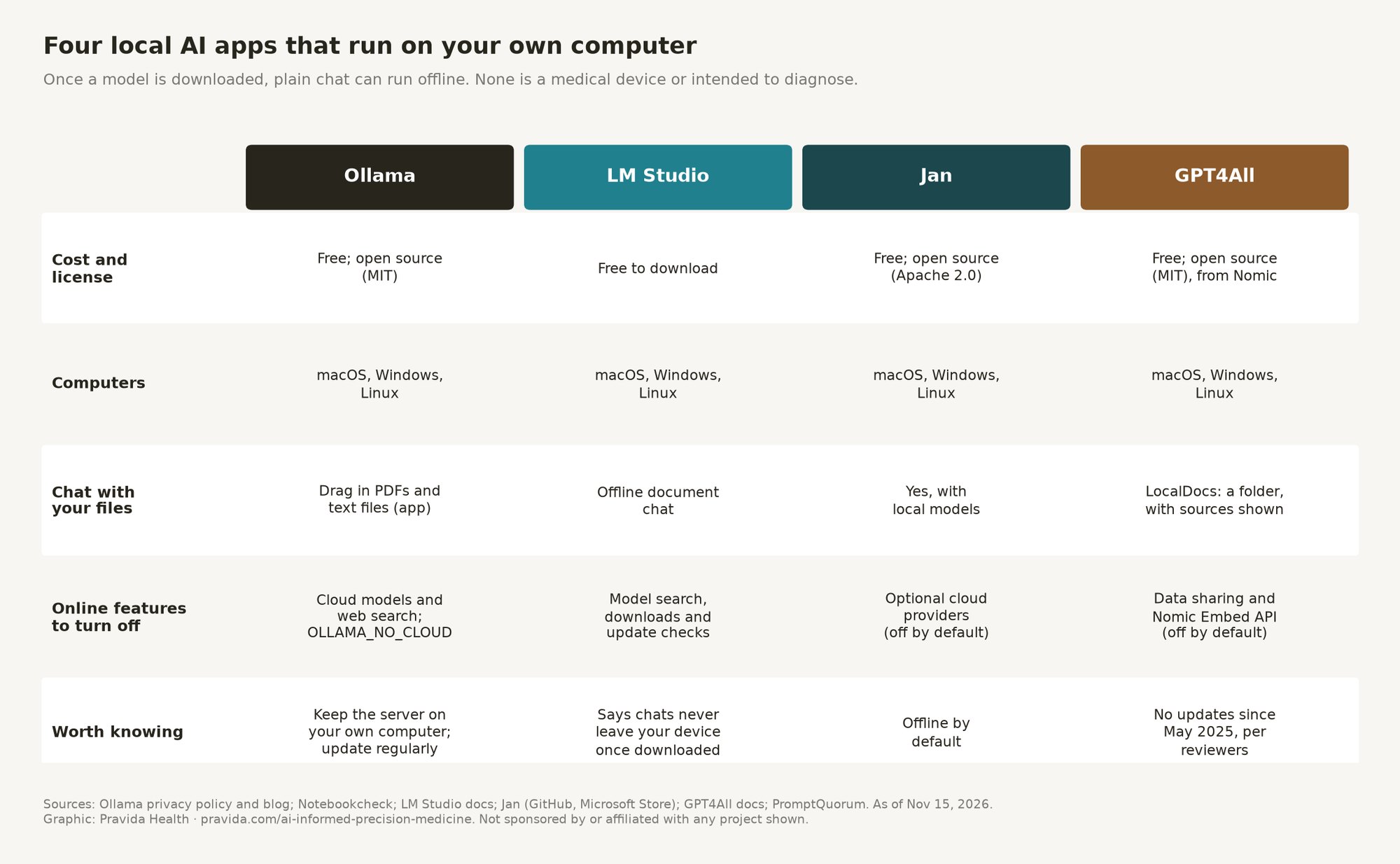
An AI model is a large file. A local AI app downloads that file once, then runs it on your computer’s processor and memory. The four best-known desktop apps:
| App | What it is | Privacy notes |
|---|---|---|
| Ollama | Free, MIT-licensed app for macOS, Windows and Linux. Its desktop app accepts dragged-in PDFs and text files. | Ollama says it does not see prompts or data when you run models locally. Models tagged “cloud” and web search run on Ollama’s servers. |
| LM Studio | Free desktop app for Windows, macOS and Linux that can chat with your documents offline. | LM Studio says nothing you enter leaves your device once a model is downloaded. Model search, downloads and update checks use the internet. |
| Jan | Free, open-source (Apache 2.0) app for Windows, macOS and Linux. | Runs offline by default. You can optionally connect cloud providers, which do send data out. |
| GPT4All | Free, MIT-licensed app from Nomic with LocalDocs, which lets a model answer from a folder of your files and shows which files it used. | Data sharing is off by default. Reviewers note the app has not been updated since May 2025. |
Sources: Ollama privacy policy; Ollama; LM Studio docs; Jan on the Microsoft Store; Jan on GitHub; GPT4All LocalDocs; GPT4All settings; PromptQuorum.
What about the models?
The apps let you choose from many open-weight models, the files described above. Two are worth knowing about for health:
- MedGemma is Google’s family of open medical models, built on Gemma 3 and trained on medical text and images. Google says the 4B version is small enough to run offline (Google Research). In a Nature Medicine evaluation, physicians rated 15.4% of MedGemma 4B’s open-ended answers factually inaccurate, compared with 18.5% for the base model (Frontier summary of Nature Medicine; Nature Medicine). Google calls it a developer model that needs validation before use (Google).
- General open models from Google, Meta, OpenAI, Alibaba and others are often better at plain-language explanation. Meta’s new Muse Glimmer, for example, is a 30-billion-parameter open model that Meta says fits on a single 24 to 32 GB GPU or a Mac when compressed (Meta). That is beyond most laptops; smaller models fit ordinary computers.
Step 1: Get your records
Local AI only works with data you have. The good news is that you have a legal right to it. HIPAA gives you the right to see and get copies of your health information, and your provider generally has up to 30 days to respond (HHS). The 21st Century Cures Act requires that patients can access all of their electronic health information at no cost (HL7 FHIR). In practice, start with your patient portal and look for “Download” or “Export,” or the Blue Button symbol (HealthIT.gov).
Save the PDFs you can read, plus any structured export the portal offers, in one folder on your computer. Keep that folder somewhere you control, not a shared drive. One caution about software: Fasten OnPrem, the best-known open-source personal health record app, was archived in July 2026 and only imports files you export yourself (Fasten on GitHub). A plain folder of PDFs is often the most durable record you can keep.
Step 2: Make sure it is really offline
This is the part most guides skip. “Local” apps still use the internet for some things, and a few features send your words out by design:
- Ollama cloud models and web search. Models tagged “cloud” run on Ollama’s servers, and Ollama says it processes those prompts transiently and does not train on them (Ollama). That is a policy, not local processing. Notebookcheck explains how to switch off cloud features with the OLLAMA_NO_CLOUD setting (Notebookcheck).
- LM Studio model search, downloads and updates. These use the internet; chatting with downloaded models and documents does not (LM Studio).
- Optional cloud providers in Jan or GPT4All. If you add an OpenAI, Anthropic or other key, chats with those models leave your computer (Jan; GPT4All).
- Tools and agents. In plain chat, nothing leaves your computer. Once a model can run commands, read files or browse, it can open a path to the internet. Notebookcheck recommends approving each tool action one at a time (Notebookcheck).
The simplest test: once the app and model are downloaded, turn off Wi-Fi and try it. If it still answers, your chat is running on your computer. Also leave the app’s server set to your own computer only. Security researchers have warned that Ollama servers exposed to a network or the internet can be reached without a login (Spiceworks).
Step 3: Ask good questions
- One document at a time. Small models do better with a single lab report or visit note than with your whole history at once.
- Explain, don’t diagnose. “Explain this MRI report in plain language and list terms I should ask about” is a good local-AI task. “What do I have?” is not.
- Make a timeline. Ask it to list your results with dates and units so you can see trends. Check every number against the original.
- Draft questions. Ask for the three to five questions that matter most for your next visit.
- Ask what it is unsure of. Then use the one-page summary prompt below.
Where local AI falls short
Privacy is the reason to use local AI. Accuracy is not. Local models are much smaller than the cloud systems in the rest of this series, and they make more mistakes, especially with long records, tables and scanned PDFs. The researchers who showed local health-record questions were feasible also reported that hallucinations remain a problem (arXiv).
Local also moves the risk rather than removing it. A dermatology review in JMIR noted that running AI locally shifts the risk from sending data out to how well the data is protected where it sits (JMIR Dermatology). For a patient, that means a password on your computer, disk encryption turned on, and care with who else uses it. And there is no company support line if something breaks.
How to bring local AI work to your physician
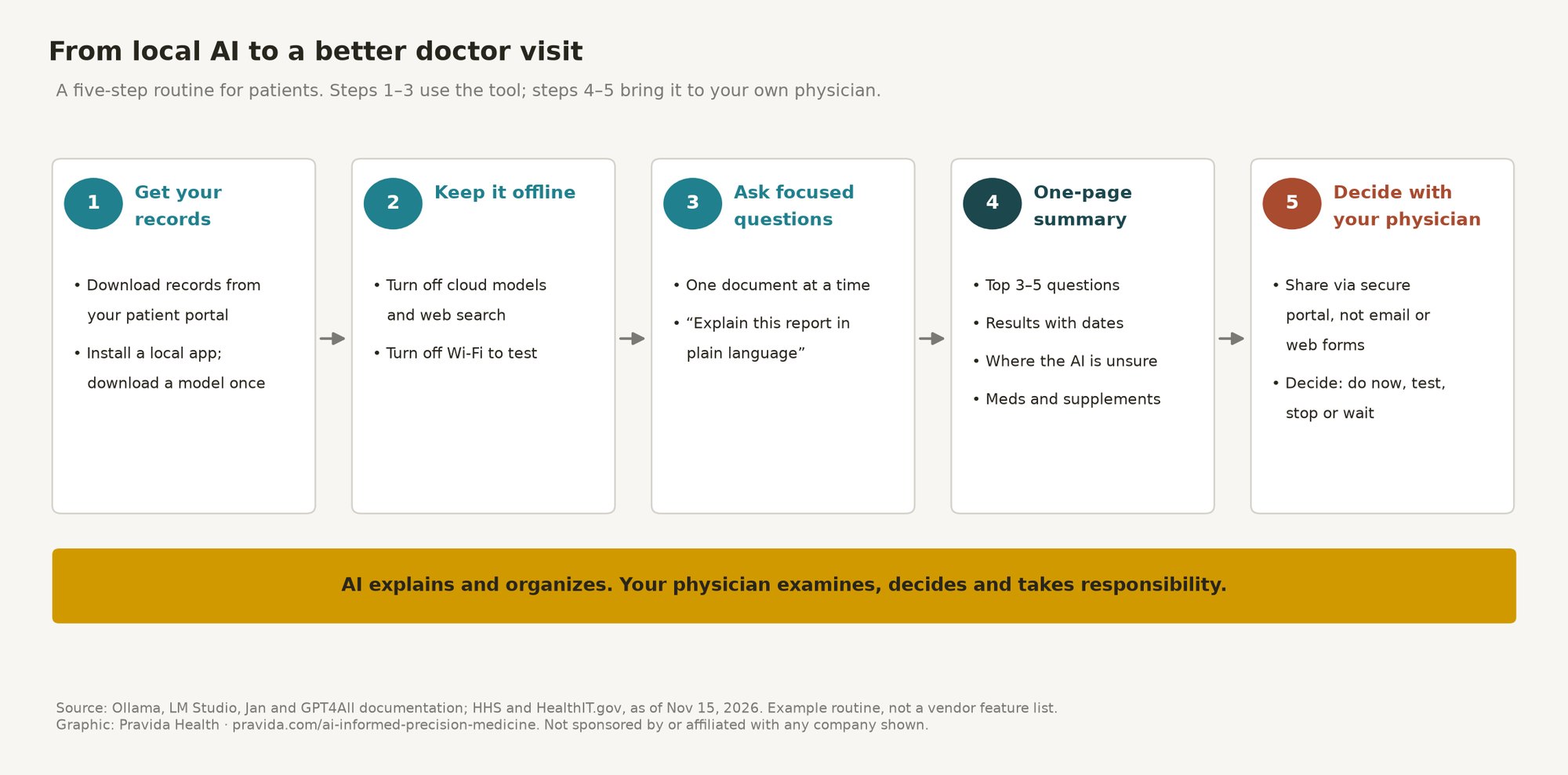
The most useful thing you can bring to a visit is not a long chat transcript. It is a short, honest summary that separates what your records show from what the AI suggested. Here is the routine I recommend to my own patients:
- Check the data first. Before you ask anything, look at what the tool pulled in. Records can be incomplete or out of date, and a medication you stopped last year may still be listed.
- Ask your questions, then ask for the summary. Use the prompt below at the end of your conversation so the AI lists its own uncertainty.
- Add what the AI does not know. Symptoms you haven’t typed in, family history, supplements and anything that happened outside the records.
- Share it securely. Bring it to the visit or upload it through your physician’s patient portal. Don’t send health details by regular email or a website form.
- Let the visit decide. Your physician’s job is to decide which of the AI’s ideas apply to you, what to test, what to stop and what can wait.
One-page physician summary prompt (from our visit preparation guide; works in any of these tools)
“I’m preparing for a visit with my physician. Using only what we’ve discussed and the health information I’ve shared with you, write a one-page summary for my doctor with these sections: 1. My top 3–5 questions, in priority order. 2. Relevant results or data (with dates and units), and what changed over time. 3. What you suggested I consider, and how confident you are in each suggestion. 4. What you could not determine without an exam, testing, or my full history. 5. My current medications and supplements, as I’ve told you. Keep it under one page. Do not add diagnoses. Mark anything uncertain as uncertain.”
The AI health tools series
This post is part of an eight-part series on what patients can do with AI health tools to work better with their own physicians. The others:
- ChatGPT Health
- Claude and your health records
- Gemini and the Google Health Coach
- Longevity Grok (PLSI)
- Perplexity Health
- Meta’s Muse agent
- Microsoft Copilot Health
For the health-system side, see Gemini for healthcare vs. OpenAI, Anthropic, Amazon and Microsoft. For how I work with patients who bring AI research to a visit, see AI-Informed Precision Medicine at Pravida.
Bring your AI research to a physician who uses these tools
Pravida’s AI-Informed Precision Medicine consultation is built for patients who have already done the research. You upload your one-page AI summary, recent labs and wearable exports through our secure patient portal. Dr. Turner reviews them before the visit, then works through them with you.
- Free 15-minute discovery call with our care coordinator
- Virtual consultation: 45 minutes, $295 (adults located in Georgia or Florida during the visit)
- In-person consultation in Midtown Atlanta: 60 minutes, $495
- You leave with prioritized recommendations: what to do now, what to test, what to stop and what can wait
Please don’t send health details through our website form or email; you’ll get a secure portal link after booking. Details and credit terms are on the consultation page.
Pravida Health, 1801 Peachtree St NE, Suite 150, Atlanta, GA 30309. Call 404-900-7371, email info@pravida.com or request an appointment.
Frequently asked questions
Can I use AI on my medical records without uploading them?
Yes. Free apps such as Ollama, LM Studio, Jan and GPT4All can run open AI models on your own computer. Once a model is downloaded, chats and documents can stay on your device, as long as cloud features are turned off.
Is local AI completely private?
For plain chat with a downloaded model, the apps say your content stays on your computer. But some features use the internet, including Ollama cloud models and web search, model downloads and updates, optional cloud providers and AI tools that can browse or run commands. Turn those off for health data.
What computer do I need?
Jan’s published guidance for macOS is about 8 GB of memory for small 3B models, 16 GB for 7B models and 32 GB for 13B models. Larger models need more powerful hardware.
Is there a medical AI model I can run locally?
Google’s MedGemma is an open medical model, and Google says its 4B version is small enough to run offline. Google describes it as a developer model that needs validation, so treat its answers as a starting point for questions, not as medical advice.
How do I get my medical records to use with local AI?
Use your patient portal’s download or export option, or ask your provider’s medical records office. HIPAA gives you the right to a copy, and electronic access through a portal is usually free.
References
- Offline operation. LM Studio documentation. LM Studio.
- Privacy policy. Ollama.
- Ollama’s new app. Ollama.
- Ollama and LM Studio: how to make sure your local AI stays offline. October 30, 2026. Notebookcheck.
- Understanding Ollama hardware, models and security risks. Spiceworks.
- Jan repository and system requirements. GitHub.
- Jan AI. Microsoft Store.
- LocalDocs. GPT4All documentation.
- Settings. GPT4All documentation.
- GPT4All review. PromptQuorum.
- MedGemma. Google Health AI Developer Foundations.
- Next-generation medical image interpretation with MedGemma 1.5 and medical speech-to-text with MedASR. Google Research.
- An open vision-language model for diverse medical applications. Published October 6, 2026. Nature Medicine.
- Build with Muse Glimmer. Meta.
- Fasten OnPrem (archived July 18, 2026). GitHub.
- Individuals’ right under HIPAA to access their health information. HHS.
- Get it: access your health information. HealthIT.gov.
- FHIR overview: patients. HL7.
- Q&A: When it comes to health care, how can AI help or hurt patients? Medical Xpress.
- Grounded question answering over electronic health records on a single notebook computer (ArchEHR-QA 2026 shared task). arXiv.
- Local deployment of large language models: governance and privacy considerations. JMIR Dermatology.